Transparent Images for Email: When and How (2026)

You design an email. The hero is a product photo with a clean white background. The brand color is a deep teal. You drop the white-background photo onto the teal section and suddenly there's a hard rectangle of white sitting on top of the brand color. The composition collapses.
The fix is to remove the background from the photo — turn that white rectangle into transparency — and let the email's background color show through. Same image, infinitely more compositional flexibility. You can drop the product onto any background, animate it over a gradient, layer it over a hero pattern, or float it without an obvious bounding box.
This guide walks through the PNG transparency standard and why JPEG can't do transparency, the three techniques for removing backgrounds (manual, magic-wand, ML-based), Outlook's quirks with transparent images, dark-mode considerations (where transparent PNGs get sneaky), file-size tradeoffs, and a free in-browser background remover that runs ML-based subject detection without uploading anything.
What you will learn: When transparent PNGs add design value (logos, hero cut-outs, layered compositions) and when they don't, the PNG-8 vs PNG-24 vs WebP vs SVG tradeoffs for email, the three background-removal techniques (manual masking, magic-wand, ML-based subject detection), Outlook's transparency quirks (the bgcolor attribute trick, halo effects), dark-mode considerations (the disappearing-logo problem), file-size tradeoffs, and how to use the free MiN8T Background Remover.
1 When Transparent Images Matter for Email
You design an email. The hero is a product photo with a clean white background. The brand color is a deep teal. You drop the white-background photo onto the teal section and suddenly there's a hard rectangle of white sitting on top of the brand color. The composition collapses.
The fix is to remove the background from the photo — turn that white rectangle into transparency — and let the email's background color show through. Same image, infinitely more compositional flexibility. You can drop the product onto any background, animate it over a gradient, layer it over a hero pattern, or float it without an obvious bounding box.
This applies beyond product photos. Logos that need to sit on dark email backgrounds. Lifestyle photography that needs to integrate with brand colors rather than fight them. Icon graphics that need to render on themed backgrounds. Cut-outs of people for testimonial sections. Anything that's currently rendered as a colored-rectangle-on-different-colored-background is a candidate for transparent-background treatment.
What this article walks through
The PNG transparency standard and why JPEG can't do transparency, the techniques for removing backgrounds (manual masking vs ML-based vs the magic-wand approach), Outlook's quirks with transparent images and background colors, dark-mode considerations (this is where transparent PNGs get sneaky), file-size tradeoffs (PNG-24 with alpha is bigger than JPEG), and a free in-browser background remover that runs ML-based subject detection without uploading anything.
Transparent images aren't a styling preference; they're a compositional tool. The same product photo with a transparent background lets you ship five email designs from one asset.
2 The PNG Transparency Standard
PNG supports an alpha channel: every pixel has not just R/G/B values but also an A (alpha) value from 0 (fully transparent) to 255 (fully opaque). When the email client renders the PNG, transparent pixels show whatever's behind them — the email's background color, an underlying image, the dark-mode-inverted background, whatever.
PNG-8 (palette) vs PNG-24 (full color)
PNG-8 supports binary transparency only — a pixel is either fully transparent or fully opaque, no partial alpha. Cheaper, smaller files, fine for hard-edged graphics like logos. PNG-24 supports the full 8-bit alpha channel, so you can have semi-transparent pixels (essential for soft edges, anti-aliased curves, drop shadows). Bigger files. Required for photographic cut-outs.
JPEG cannot do transparency
JPEG has no alpha channel. There's no way to have a transparent JPEG. If you save a transparent-background image as JPEG, the alpha channel gets composited against white (or whatever the export tool chose) and the transparency is lost forever. Always export transparent images as PNG.
WebP can do transparency, but support is patchy
WebP supports an alpha channel and produces smaller files than PNG-24 with alpha. But (as covered in our image compression article) WebP support across email clients isn't universal. For email, default to PNG; consider WebP only after you've tested rendering across your audience.
SVG: the underused option
SVG supports transparency natively, scales infinitely without quality loss, and is tiny in file size for logos and line art. Outlook desktop does not render SVG. Most other email clients do. The pragmatic call: ship a PNG fallback for Outlook recipients via the <picture> element trick, or just stick with PNG-24 across the board. SVG-in-email is a power-user move.
3 The Three Background-Removal Techniques
Three approaches, in increasing order of quality and decreasing order of effort.
1. Manual masking in Photoshop / Affinity
The traditional approach. Use the Pen tool to draw a path around the subject, refine the edges, convert to a mask. Highest quality, full control over edge softness, but takes 5–30 minutes per image depending on complexity. Worth it for hero shots; impractical for batches.
2. Magic-wand / color-range selection
Click the background color, expand the selection, delete it. Works well when the background is a uniform color (white studio background, solid color backdrop) and the subject has clear contrasting edges. Doesn't work when the background is photographic (lifestyle photography, product on a textured surface) or when the subject blends into the background (white shirt on white background).
3. ML-based subject detection
The 2026 approach. Models like Segment Anything (SAM), U2-Net, and BiRefNet have been trained on millions of subject/background pairs and can identify the foreground subject of an image with near-Photoshop-level edge accuracy in under a second. The MiN8T Background Remover uses a WASM-compiled BiRefNet variant that runs in the browser without uploading anything.
For most use cases, ML-based removal is the right answer in 2026. It handles edge cases (hair, fur, semi-transparent objects) far better than the magic-wand approach and approaches manual-masking quality without the time cost. The remaining gap with manual: ML still occasionally misses fine details (a single hair strand in front of a complex background), so for top-tier hero shots, run ML first then manually clean up the few problem pixels.
4 Outlook's Quirks with Transparency
Outlook's image rendering is the source of most "why does my email look different than I designed it" mysteries.
The legacy color quantization (mostly historical)
Older Outlook versions (2003 and earlier) quantized PNG-24 images to a 216-color web-safe palette, which destroyed gradient backgrounds. This is fortunately ancient history at this point — Outlook 2007 and later render full PNG-24 with alpha correctly. If you're supporting Outlook 2003 in 2026, you have other problems.
Background-color rendering on the parent <td>
The pattern that breaks: you put a transparent PNG in a table cell with background-color: #1a4d3a. In modern email clients the PNG composites against the teal cell. In some Outlook configurations, the background-color doesn't render under the image at all, leaving a white halo where the transparent area should be.
Workaround: also set bgcolor="#1a4d3a" as an HTML attribute on the <td> (lowercase, the legacy attribute). Outlook respects the bgcolor attribute even when it ignores the CSS background-color property. Belt and suspenders.
The halo effect
If your transparent PNG was originally cut out from a white background and the cut-out was sloppy (anti-aliased white pixels left around the subject's edges), those white pixels become visible when the image sits on a dark background. The result is a subtle white "halo" around the subject. Solution: when removing backgrounds, also "decontaminate" the edge pixels (Photoshop has a "Defringe" command; the MiN8T Background Remover handles this automatically).
JPEG-as-fallback for very old clients
If your audience analytics show meaningful traffic on Outlook 2003/2007 (rare in 2026), you can ship two image variants: a transparent PNG for modern clients and a pre-composited JPEG with the background baked in for legacy clients, swapped via conditional comments. Almost always not worth the engineering cost.
5 Dark Mode Considerations
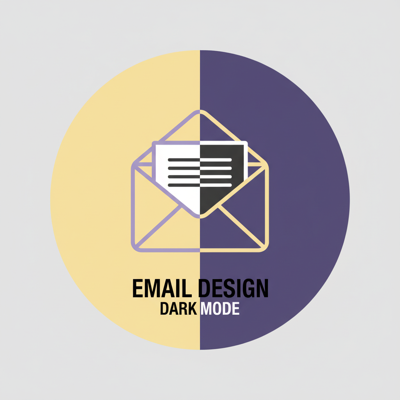
This is where transparent PNGs get sneaky. Dark mode has been mainstream in email since 2019 (Apple Mail, Gmail, Outlook all auto-invert in dark mode). The auto-inversion algorithms are unpredictable, and they interact badly with transparent images in specific patterns.
The "logo disappearing" problem
Your brand logo is a black wordmark on a transparent background. In light mode it renders as black-on-white. The user switches to dark mode. The email client auto-inverts the background to dark gray. Your transparent PNG composites against dark gray. The black wordmark is now black-on-dark-gray and is illegible. The recipient sees what looks like an empty space where your logo should be.
The fix: dark-mode-aware logos
Two patterns. (1) Ship a logo that's white or near-white on transparent, accept that light-mode recipients see a faint logo. (2) Ship a logo with a slight subtle outline / drop shadow that works on both backgrounds. (3) The bulletproof approach: media-query swap between two logo versions.
@media (prefers-color-scheme: dark) {
  .logo-light { display: none !important; }
  .logo-dark { display: block !important; }
}
Apple Mail, iOS Mail, and Gmail web honor prefers-color-scheme; Outlook desktop ignores it (and doesn't have dark mode the same way). Practically, the media-query swap covers the clients where dark-mode-disappearing-logo is actually a problem.
The "Outlook for Mac forced inversion" problem
Outlook for Mac has an aggressive dark-mode renderer that can invert image colors as well as background colors — turning your brand logo from blue to orange in some configurations. The workaround: [data-ogsc] .logo { color-scheme: light !important; } at the <style> level. This is one of those Outlook quirks that ships in the spec docs but rarely shows up in design reviews until a recipient complains.
Don't bake colors into background-removed images that conflict with dark mode
If you cut out a product on a transparent background, then add a subtle gradient shadow under it in the source PNG, that gradient is "baked in" and won't invert. In dark mode the gradient still says "this is on a light surface," contradicting the actual dark surface. Either keep the cut-out clean (no fake shadow) or add the shadow via CSS so dark-mode rendering can invert it.
6 File Size and the Hidden Cost
Transparency isn't free. A PNG-24 with alpha for a 1200x800 product photo is typically 800 KB–2 MB — significantly larger than the equivalent JPEG (200–500 KB). Multiplied across the images in an email, the weight adds up.
When the size cost is worth paying
Hero shots that need to integrate with brand colors. Logos and icons (where PNG-8 is small anyway). Compositional cut-outs that fundamentally need transparency. Hero shots are usually 1–2 images per email; the additional weight is acceptable for the design impact.
When to use opaque JPEG instead
Photographic content where the image is intended to fill its container (no compositional layering needed). Background imagery. Lifestyle photography that's used as-is. For these, the original-background JPEG is much smaller and the transparency provides no design value.
Compression that preserves alpha
Tools like pngquant and the MiN8T Image Compressor preserve the alpha channel while quantizing the RGB to a smaller palette. A typical PNG-24 with alpha can drop from 1.5 MB to 350 KB with no visually-perceptible quality loss. Always run transparent PNGs through pngquant-style compression before shipping.
Don't ship the full-resolution transparent PNG when a smaller one will do
If the image renders at 600 px wide in the email, ship the image at 1200 px (2x retina) but no larger. Transparent PNGs at 4000 px wide are a common artifact of designers exporting at print resolution; the email client downsamples them and the recipient pays for bandwidth they don't need. Always resize to 2x display dimensions before exporting.
7 Workflow and the 2026 Take
Background removal in 2026 should not be a 30-minute Photoshop session per image. It should be a 5-second drag-and-drop into an in-browser tool.
The standard workflow
Drop the source photo into the background remover. Wait 2–5 seconds for the ML model to detect the subject. Inspect the result; if it's clean, export. If there's a problem area (hair strand, semi-transparent edge), use the brush tool to refine. Compress the resulting PNG to 30–40% of the original size. Drop into the email.
Total time per image: under 30 seconds
That's the bar for whether transparent images become a regular part of your email design vs an occasional reach. ML-based tools are now fast enough that "should we cut this image out?" is no longer a 20-minute decision; it's a default.
The 2026 take on background removal
The technology is solved — ML-based subject detection works well enough that manual masking is now reserved for the top 1% of hero shots where every pixel matters. The remaining decisions are about when transparency adds design value (yes for hero shots and logos; no for full-bleed photography) and how to handle edge cases (dark mode, Outlook quirks). The MiN8T Background Remover handles all of this in the browser using a WASM-compiled BiRefNet variant — drop in the image, get a transparent PNG back, no upload, no signup, no rate limit.
Pair it with the image compressor
The full pipeline: Background Remover → Image Compressor (PNG mode, palette quantization) → drop into email. Your transparent hero shot ships at 200–400 KB instead of 1.5–2 MB, with no visual quality loss. That's the difference between an email that loads in 2 seconds and an email that loads in 7 seconds on mobile data.
Transparency-Aware Image Pipeline
MiN8T's editor preserves alpha channels through the resize / compress / CDN pipeline, applies dark-mode-aware swap rules to logos automatically, and includes the bgcolor-attribute Outlook fallback on every transparent image cell. Drop in a transparent PNG; ship.
Start Building for Free